

Multiple Volumes at Once in Surpac
Multiple Volumes Hack:
One very useful Hack in Surpac is to be able to Calculate a Volumes Report, not just for One Stockpile, but for Many in one Report.
The Above Video Shows a Useful Hack which can be used Accurately to Ensure that you do not need to Create an Individual DTM and Report for each Stockpile.
Create Base and Top Separate Strings:
The First Step in being able to Calculate Multiple Volumes in Minimal Time Accurately is to create a Base Level DTM over the Whole Area.
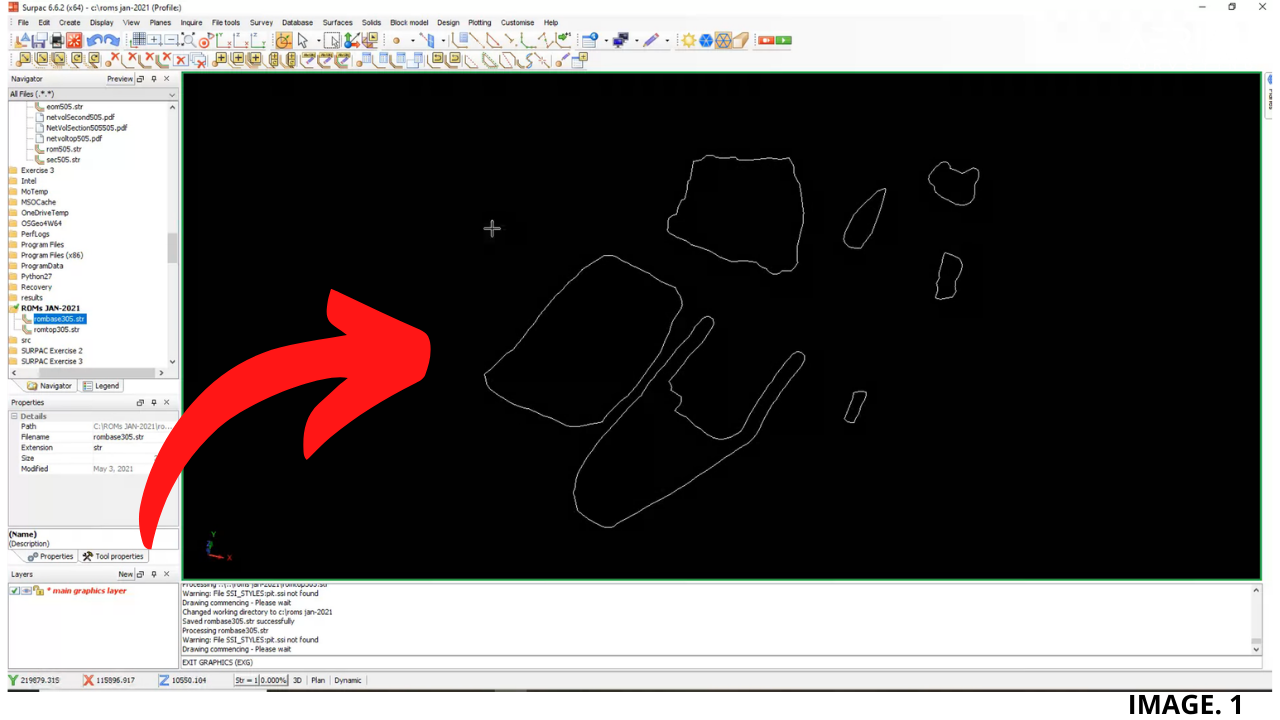
In the Above Video, Various Stockpile Pickups are shown and the BASE Strings are White, which is Normally String Number 1 in Surpac.
This is Achieved by making sure the Strings at all of the Bases of the Stockpiles are First all of the same String Number. And Second, they are all saved as 1 Separate String File called BASE.
To do this, Select; SAVE >> STRING RANGE (Enter String Number Here) >> APPLY.
Next we need to make another Separate String File of just the TOPS of the Stockpiles, this is basically the remaining strings other than the bases.
To do this, Select SAVE; >> STRING RANGE (Enter 2,99) >> APPLY.
This will ensure that any other String Number than 1 is Saved in this File.
Image 1. Shows Only the Base String Number 1:
Create DTMs of Base and Top Strings:
Now we must create DTMS of Both, Top and Bottom Surfaces, which will be then used to Calculate the Whole Area and Automatically.
Surpac will then List Individual Volumes by each Segment.
First Drag in the BASE String which was created earlier. You should see that the String only contains the Bases, or String 1.
Select; SURFACES >> CREATE DTM FROM LAYER >> APPLY.
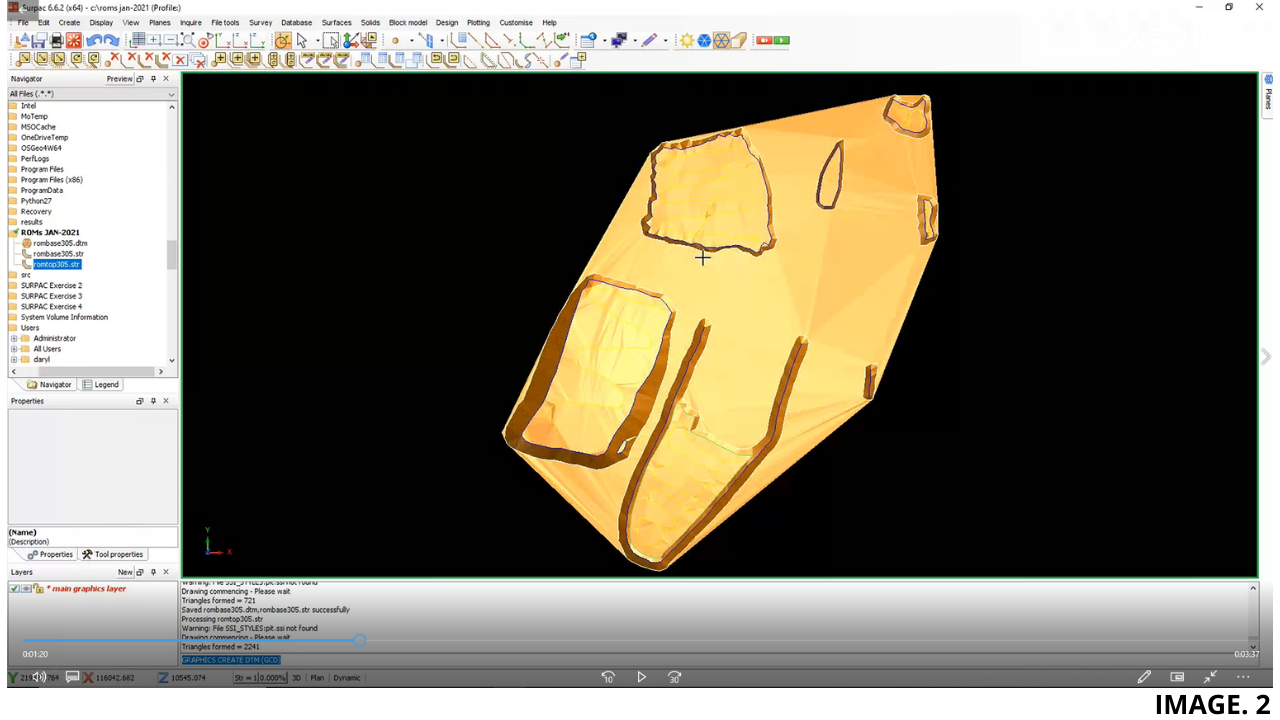
This will create a pretty Flat DTM over the Whole Area of the Stockpiles.
This should then be saved as a DTM File.
This Step should then be repeated for the TOP String File which was created earlier.
This should also be saved as a New DTM File.
We should now have Two Separate String Files and Two Separate DTM Files.
Image 2. Shows the DTM of the Top of the Stockpiles:
Calculate Net Volumes Between DTMs:
We are then going to Calculate a Multiple Volumes Report.
To do this, Select; SURFACES >> NET VOLUME BETWEEN DTMs.
Define the First DTM as the TOP DTM which was created.
Define the Second DTM as the BASE DTM which was created.
The next step, it is important the nominate a Boundary String. Also name this String as String Number 1. (Same as the BASE).
Select a Location for the Report to be Generated and label the format as .PDF.
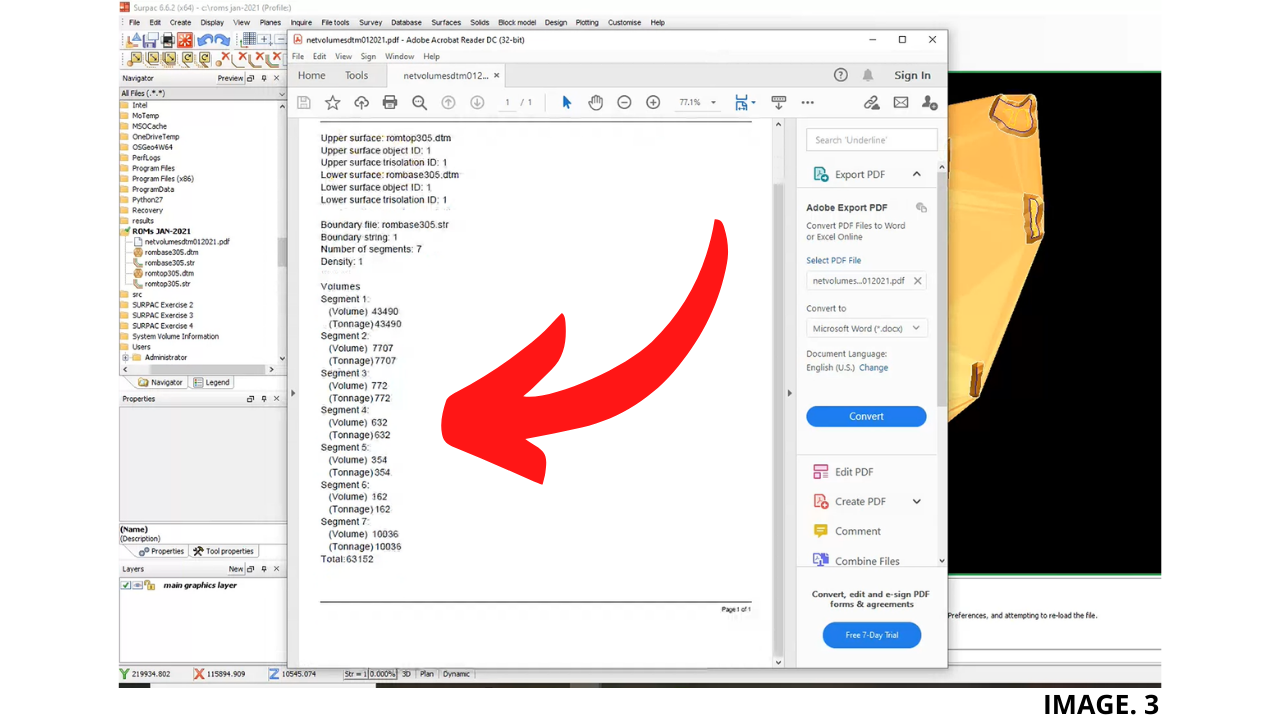
Image 3. Shows a Generated Report of Multiple Volumes:
Checking the Volumes for Accuracy:
Once you open the Newly created PDF Report, you will see that the Multiple Volumes are Automatically listed as, ‘Segments’.
You can Interrogate each Individual Segment to then Check which Volume Applies to Which Segment.
This is Required to create an Accurate PLOT.
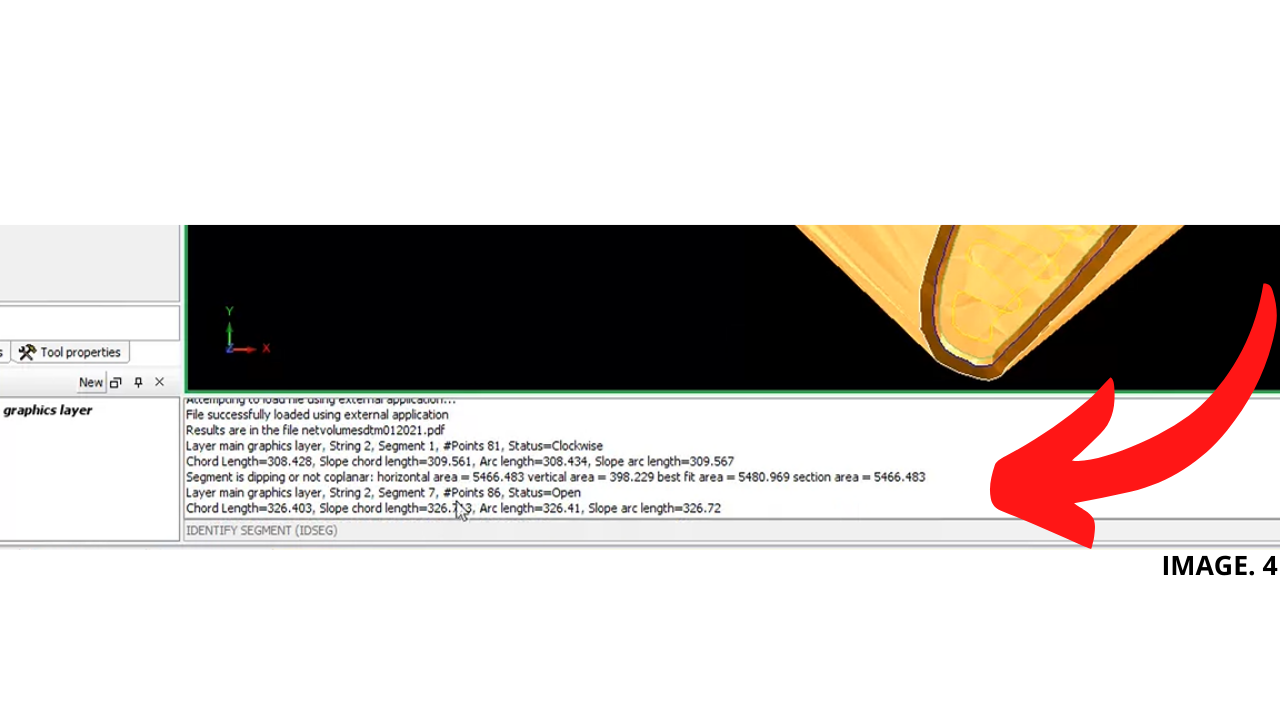
To Manually Interrogate each Segment, Select; INQUIRE >> SEGMENT PROPERTIES >> HOVER AND SELECT A SEGMENT.
Once you then Click on a Segment, you will see the Information about each Segment Appear in the Information Toolbar at the Bottom of the Screen.
Image 4. Shows an Interrogated Segment Volume Information:
Plot your Results:
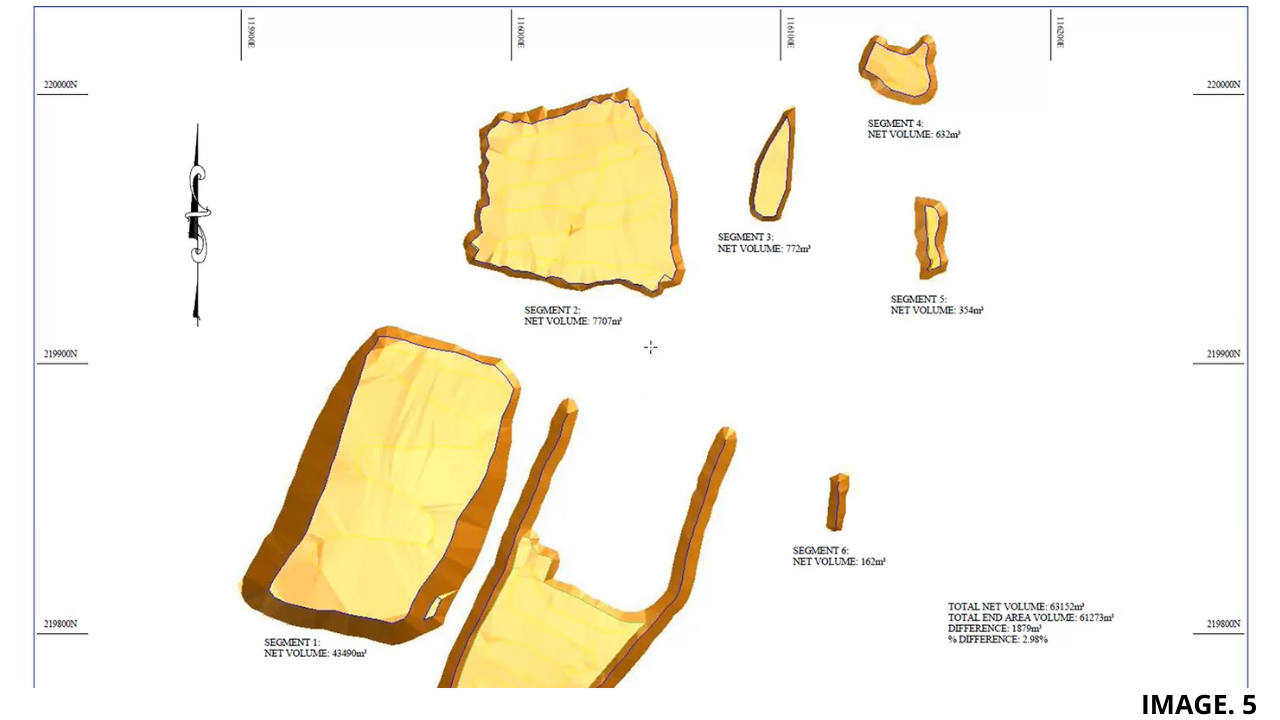
In order to then Create an Attractive Plot of your Multiple Volumes Report, again in Minimal Time; go to PLOTTING >> AUTOPLOT.
In the next Tab that Appears, if you Select the, ‘Raster Data, Render Surfaces’.
This will ensure that the 3D Models you see in Surpac Appear in Your Plot.
After this, it is then easy to Add Text from the Multiple Volumes Report.
Image 5. Shows a Finished Multiple Volumes Plot:






Recent Comments